
Are you experiencing performance issues due to a cluttered database filled with action scheduler logs? Use action scheduler cleaner to fix it fast.
Managing scheduled actions is crucial if you are a WordPress site owner who wants to ensure optimal performance and database health.
At MRK WP, we developed the Action Scheduler Cleaner plugin as a solution to streamline the process of cleaning up completed action logs in your WordPress database.
In this article, we will provide a step-by-step on how to clear action logs with the Action Scheduler Cleaner plugin. We will also include a video tutorial for you to follow along.
Video: How to use the Action Scheduler Cleaner
Check out the video tutorial on how to use the Action Scheduler Cleaner plugin.
How to use the Action Scheduler Cleaner
Follow the guide below on how to set up the Action Scheduler Cleaner plugin.
Promotional Code – 50% – off
Use the coupon – BLOG50 at checkout to get a 50% discount when buying the Action Scheduler Cleaner plugin.
Installation and Activation
To install the plugin,
- Navigate to Plugins > Add New in your WordPress admin panel.
- Click Upload Plugin and upload the “Action Scheduler Cleaner“ zip file you downloaded in the previous step.
- Click “Install Now” and “Activate Plugin”
- Once activated, you must add the licence key you received in the plugin purchase email.
The First Time Clean-Up
Using this plugin, you can now manually perform the first cleanup of action logs.
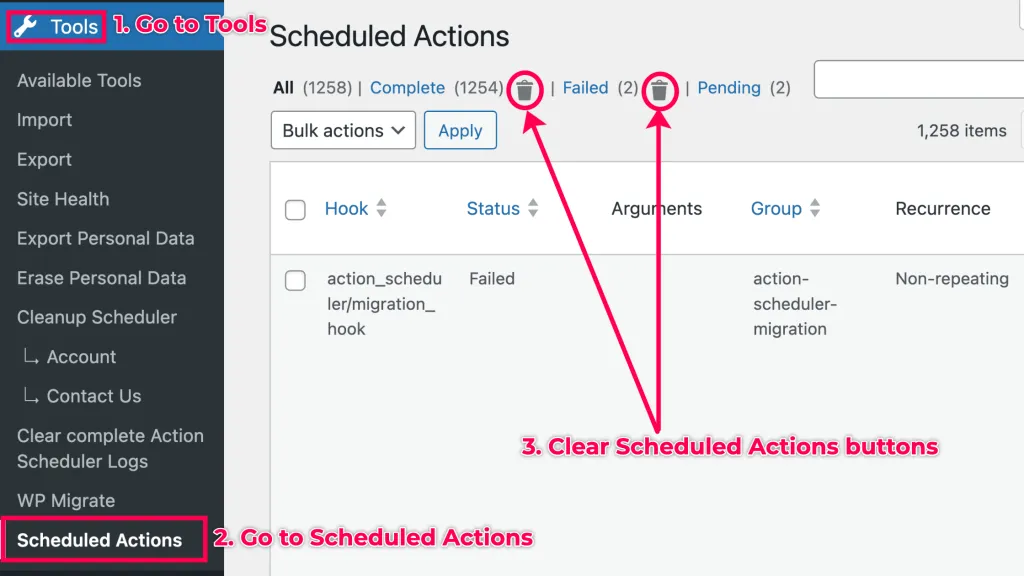
- Navigate to Tools
- Go to Scheduled Actions.
- Select the type of Scheduled Actions to delete; these could be either Completed or Failed actions. Click the trash icon to delete the actions. You will see a pop on your screen asking you to confirm the deletion.
Pending Actions
You should notice that the Pending Actions do not have a trash icon next to them; hence, we cannot delete them.
These pending actions are scheduled for a later time, so deleting them will prevent them from running when they were scheduled.
You should only delete Completed and Failed actions.
Clearing Large Action Scheduler Logs
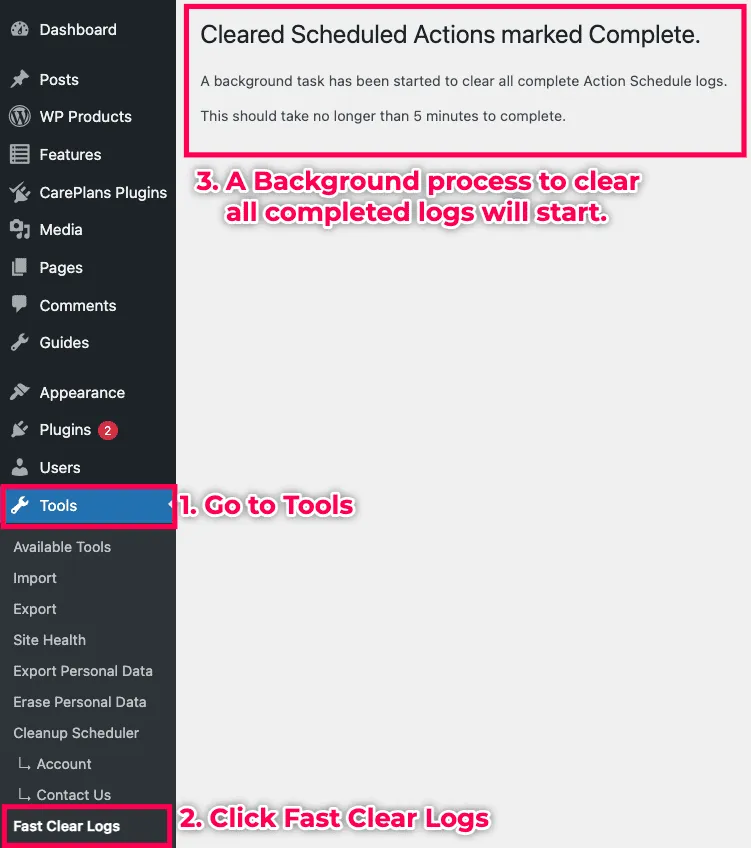
If you have a huge backlog of actions to delete, for instance, 100,000 or more, you will need to use the Fast Clear Log feature to clear them.
To do this,
- Go to Tools.
- Click Fast Clear Logs.
- This will start a background process in the background to clear the large log count.
Conclusion
With these simple steps, you can harness the power of the Action Scheduler Cleaner plugin to clear completed scheduled actions.
Regularly clearing completed tasks improves performance and ensures a healthier and more efficient WordPress database.
Take control of your WordPress site’s scheduling tasks today with Action Scheduler Cleaner and enjoy smoother operation and enhanced performance!
Frequently Asked Questions
I have installed the plugin but nothing is happening?
First follow the settings carefully. If everything is setup as per this guide please check with your host that WP CRONS are being run from the command line.
My host won’t help me with WP CRON. What should I do?
I would suggest you get a good host. For now you can install a free plugin called crontrol from the WordPress repo. This should help identify why crons may not be working.
How long does it take for the scheduled actions log to clear?
It depends on the size of your log and the power of your system. Our plugin gives an estimate in the fast log clear tool.