Would you like to send your users to a custom Thank You page once they have completed a form submission? A well-designed “Thank You” page is key to confirming successful submissions and leaving a positive, lasting impression. This guide will show you how to set up a custom page redirect with Kadence Forms, ensuring a smooth user experience on your WordPress website.
Video Tutorial: How to Set Up a Thank You Page Redirect in Kadence Forms
Watch a video tutorial on how to set up a Thank You Page redirect in Kadence Forms.
Steps on How to Set Up a Custom Page Redirect with Kadence Forms
1. Preparation
- Create your Thank You Page: Design a dedicated page expressing gratitude and providing any relevant follow-up information. This could be a simple message or a more elaborate page with additional resources.
- Locate the Page URL: Once your thank you page is ready, copy its unique URL. You’ll need this to configure the redirect within the form settings.
Note
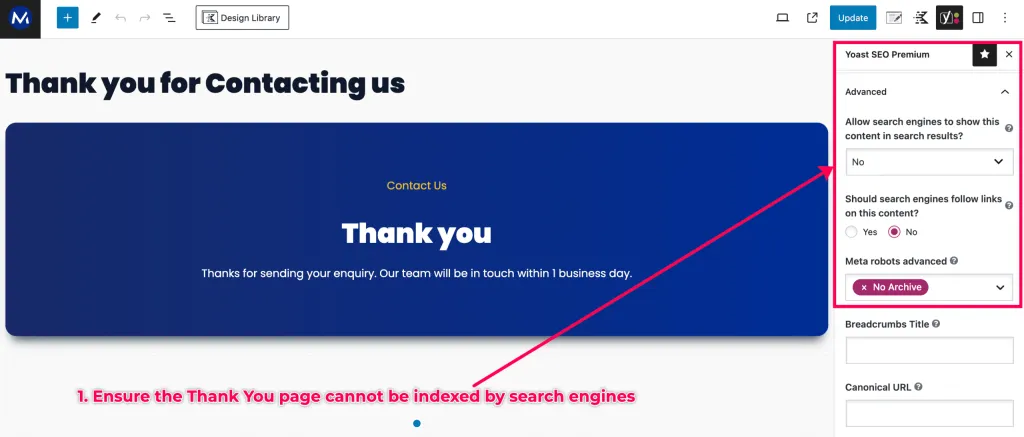
When creating a Thank You page, ensure it not indexable by search engines.
2. Setting Up the Redirect
- Access the Form Editor: Navigate to your WordPress dashboard – Kadence – Forms and open the form you want to add a redirect.
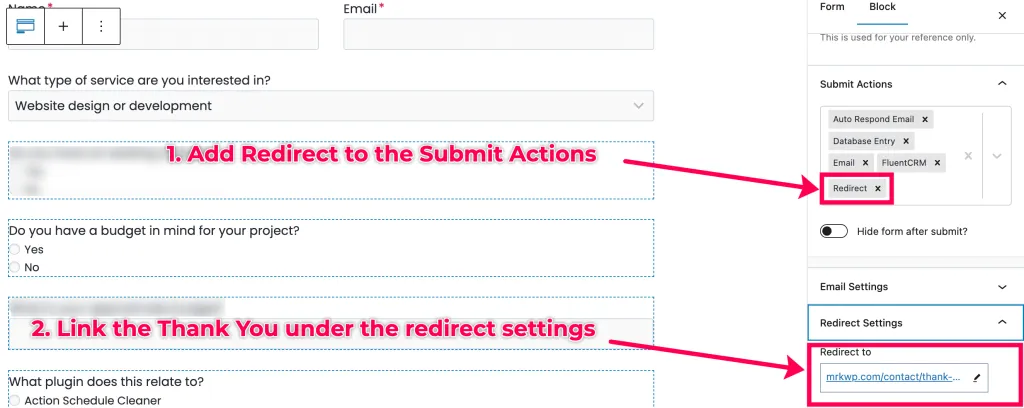
- Find the “Submit Actions” Section: Inside the Kadence Form settings, locate the “Submit Actions” section. This area controls what happens after a user successfully submits the form.
- Enable the “Redirect” Option: Add the “Redirect” to the submit actions.
- Add Thank You Page URL to Redirect Settings: Paste the Thank You page URL under the redirect settings.
- Save the Changes: Click the “Update” button to save changes on your form.
3. Testing the Redirect
Submit sample data to your form and confirm if you are redirected to the Thank You page.
Extra Tip
Consider personalizing the Thank You page with user-specific information captured in the form, such as name or email address, to create a more engaging experience.
Conclusion
By following these steps, you can create a custom page redirect for your Kadence Form, enhancing the user experience and leaving a positive impression on those who submit their information.