

Kadence Forms is a powerful tool for creating forms in WordPress. It offers a wide range of features to build custom forms efficiently. Among its many functionalities, the Date Input Field stands out as a particularly useful feature for collecting date-related information from users.
In this guide, we’ll delve into how to add the Date Input Field in Kadence Forms to enhance your form-building experience.
Video: How to use Kadence Forms’ Date Input Field
Watch the video tutorial on how you can add the Date input when using Kadence Forms.
Understanding the Date Input Field
The Date Input Field in Kadence Forms allows users to select dates easily through a user-friendly interface.
Whether you’re gathering event registrations, scheduling appointments, or simply requesting birthdates, this feature streamlines the process by providing a calendar picker for selecting dates.
What You’ll Need
- Kadence Blocks Pro: Ensure you have the Pro Version of Kadence Blocks installed and activated on your site. This will give you access to the Date Advanced Field.
Steps to Add a Date Input Field
To integrate the Date Input Field into your Kadence Form, follow these simple steps:
- Start by creating a new form or editing an existing one. Use the Kadence Blocks plugin and add the Advanced Form Block.
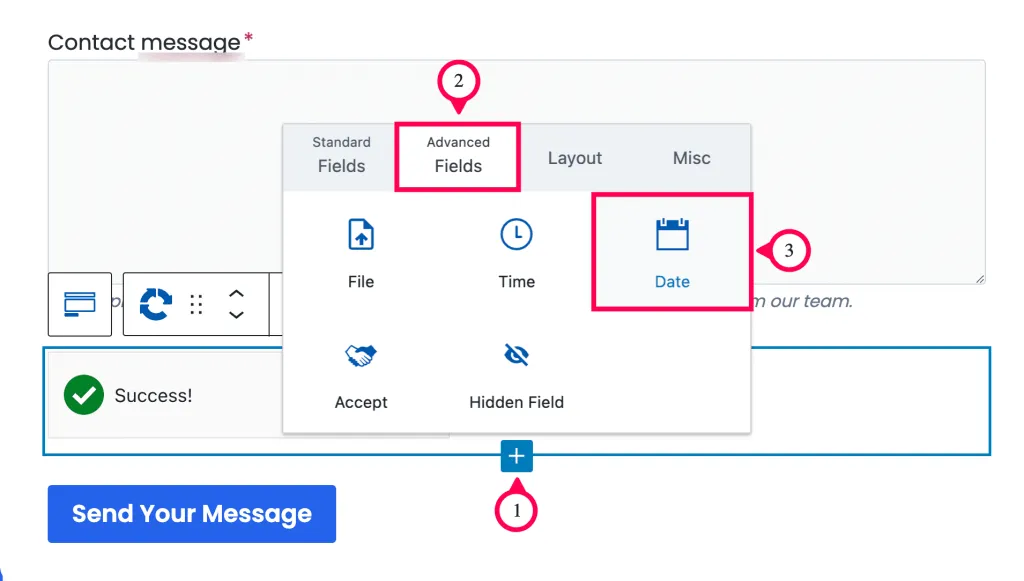
- Click the “+” button and select “Date” from the available field options. This adds the Date Input Field to your form.
Configuring Date Input Field Settings
Once you have added the Date Input Field to your form, you can fine-tune its settings to suit your specific requirements. Here are some key configuration options to consider:
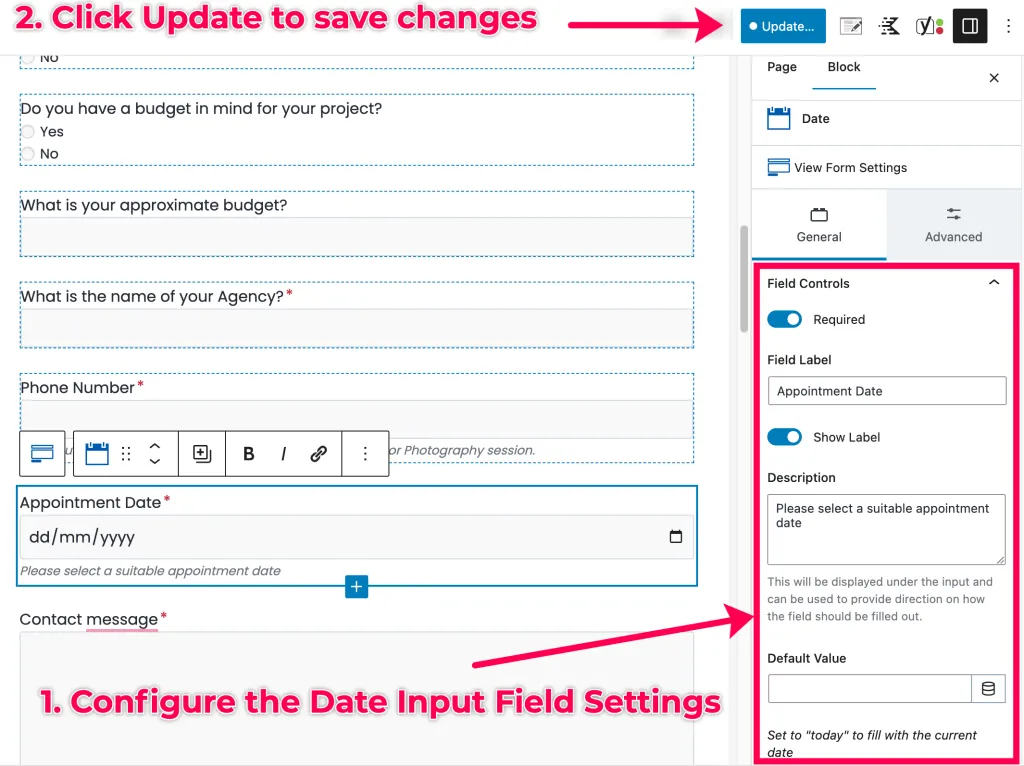
- Required Field: Toggle the option to make the Date Input Field mandatory for form submission.
- Customize the field label: Give it a clear label (e.g. “Appointment Date”). You can also add a helpful description or placeholder text for guidance.
- Default Value: If needed, set a default date value to pre-fill the field.
- Conditional Logic (Advanced tab): Utilize conditional logic to show or hide the Date Input Field based on user selections or form responses.
Date Input Field Limitations
Unfortunately, Kadence Forms’ Date input currently lacks a feature to set minimum and maximum dates that specify the earliest and latest dates a user can select.
This means you can’t restrict the selectable date range, which can be limiting for birthdates, events, appointments, or specific deadlines.
Test the Date Field
Test your form at the front end thoroughly to ensure the Date Input Field functions as intended and provides a smooth user experience.
Conclusion
The Date Input Field in Kadence Forms is a versatile tool for collecting date-related information in WordPress forms.
Mastering the Date Input Field empowers you to build engaging forms that efficiently capture date information from your audience.
By understanding its features and configuring the settings, you can leverage this functionality to create intuitive and user-friendly forms tailored to your specific needs.
Frequently Asked Questions
How do I add a Date Input Field to my Kadence Form?
To incorporate a Date Input Field into your Kadence Form, simply access the Kadence Forms editor, add the Date Field element to your form, and customize it to your liking.
Can I use conditional logic with the Date Input Field?
Indeed, Kadence Forms allows you to implement conditional logic with the Date Field, enabling you to show or hide the field based on user interactions or form responses.
Is the Date Input available for Kadence Blocks – Free version?
No, the Date Input is an advanced field only available in the Pro Version of Kadence Blocks.