
Tired of manually adding leads to your CRM? Kadence Blocks Pro integrates with FluentCRM to automatically capture website leads from your forms.
In digital marketing, efficient lead management is paramount. Talking to potential customers is your chance to get to know them and turn them into paying customers. Kadence Forms and FluentCRM are powerful tools that can streamline this process when used together effectively.
Struggling to turn website visitors into leads? This article shows you how to integrate Kadence Forms with FluentCRM for effortless lead capture and management!
Video Tutorial: How to Integrate FluentCRM with Kadence Forms
Watch the video tutorial on how to integrate FluentCRM with Kadence Forms.
What You’ll Need
Before we proceed, here are some of the prerequisites for this tutorial.
- FluentCRM Plugin: You’ll need to install the FluentCRM plugin to capture leads from your forms and store them in your CRM.
- Pre-existing Form: To integrate with FluentCRM, you will need a Kadence Form on your website. If you do not have one, watch our tutorial on creating one.
Understanding Kadence Forms and FluentCRM
Kadence Forms: This is a WordPress plugin with a form builder designed to create beautifully crafted forms quickly and easily. It offers a range of features, including drag-and-drop form creation, conditional logic, email notifications, and more.
FluentCRM: FluentCRM is a customer relationship management plugin for WordPress.
FluentCRM includes:
- Manage leads and contact records.
- Create marketing automation workflows.
- Send email campaigns.
- Track customer interactions on your website and email campaigns.
This is all done from within your WordPress Dashboard.
Benefits of Integrating FluentCRM with Kadence Forms
By integrating Kadence Forms with FluentCRM, you can enhance your lead generation and management processes in several ways:
- Boost Your Lead Capture: Effortlessly move website visitors into your CRM by integrating forms with FluentCRM. No more manual data entry of the leads into your CRM.
- Automate Lead Management: Streamline your workflow! Integrate your forms with FluentCRM to automatically capture leads in your CRM.
- Never Miss a Lead Again: Say goodbye to lost leads! Integrate forms with FluentCRM for seamless lead capture straight to your CRM.
How to Integrate Kadence Forms with FluentCRM
Integrating Kadence Forms with FluenCRM is a breeze! With just a few simple steps, you can automate your lead capture.
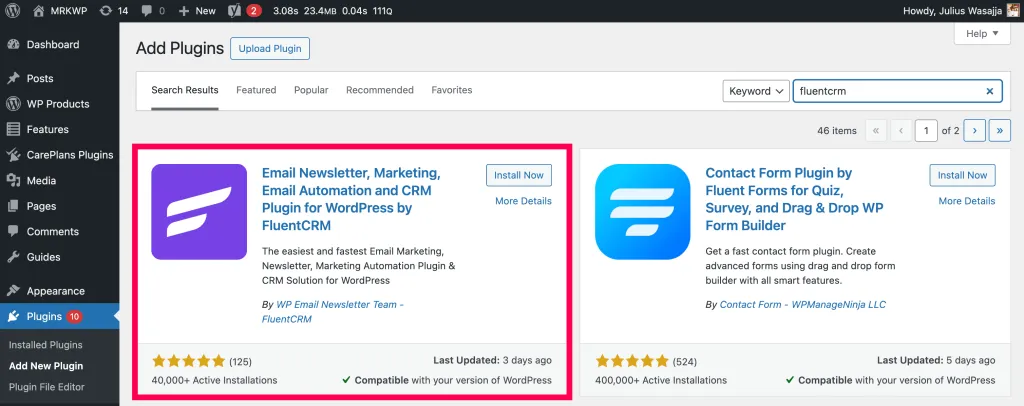
1. Install and Activate the FluentCRM Plugin
Start by installing and activating the FluentCRM plugin on your WordPress website.
2. Setup Wizard
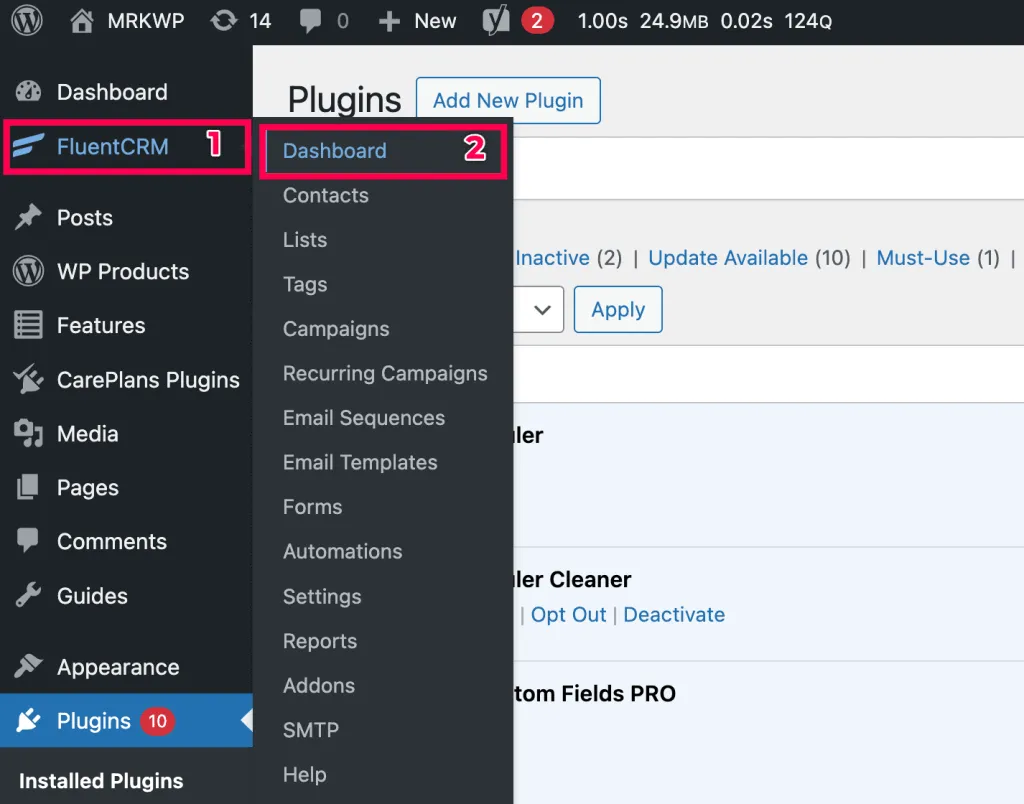
After the activation, from the WP Admin dashboard, go to FluentCRM – Dashboard.
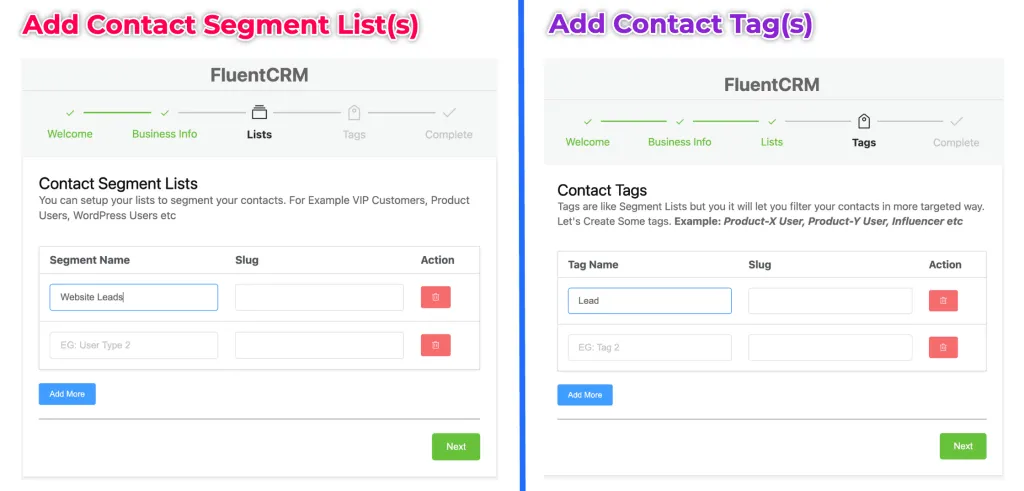
At the setup wizard, you will fill in 5 stages of information;
- Welcome stage: A welcome stage for the setup.
- Business info: Fill in the business name and address.
- Add Contact Segment Lists: These lists allow you to segment your leads into various categories. You can set up your lists to segment your contacts. For Example, VIP Customers, Product Users, WordPress Users etc
- Organize with Tags: Use tags to label your contacts! This helps you easily find specific groups of people (like “newsletter subscribers”) and send them targeted emails.
- Complete stage: This marks the end of the set-up. Do not install the Fluent Form plugin on the site since you already have the Kadence forms.
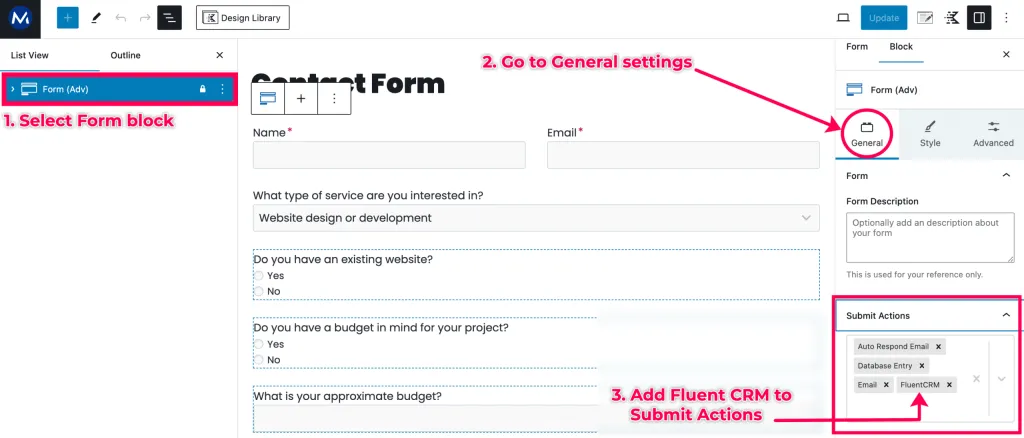
3. Add FluentCRM to Submit Actions
After the setup wizard, go to Kadence – Forms and select the form you want to integrate.
- Select the Form (Adv) block and go to the block Settings.
- Switch to the General.
- Scroll to the Submit Actions and add the FluentCRM.
4. Map FluentCRM List with Form Fields Forms Integration
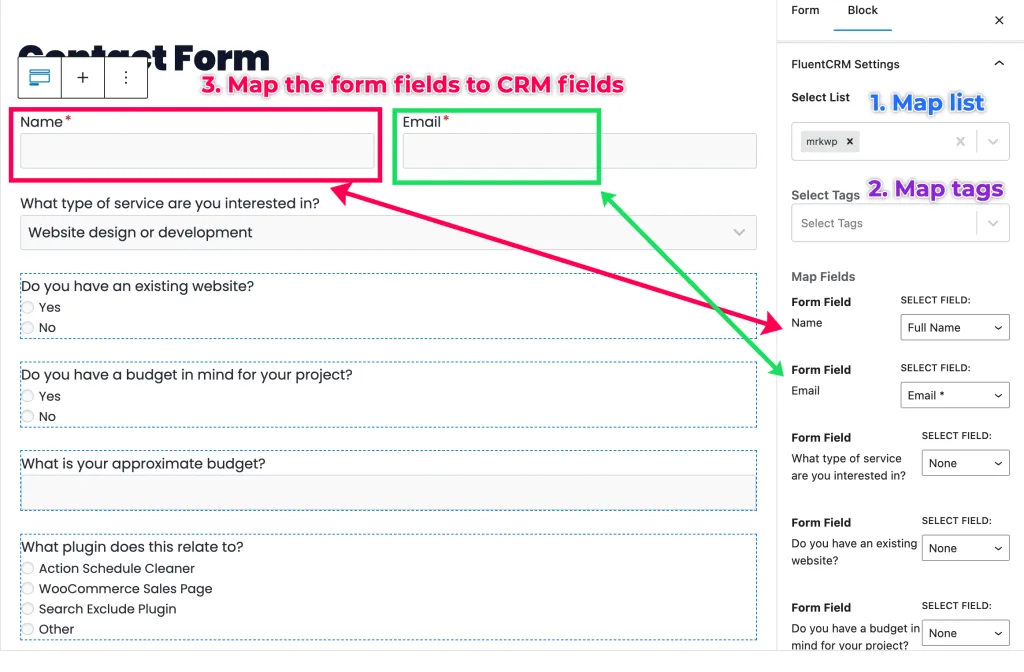
Inside the same form settings, scroll to the FluentCRM Settings section.
- Select the Map List from FluentCRM to integrate with the form.
- Select the Map Tags from FluentCRM to integrate with the form.
- Map the Form fields from the form (on the left) to the FluentCRM settings (on the right).
Save the form settings.
5. Test Integration
Once you’ve connected everything, make sure it’s working. To do this, fill out a test form and check for the new contact record within your CRM. Remember to delete the test record after verification.
Conclusion
Effortlessly capture and manage leads all within WordPress with the powerful combo of Kadence and FluentCRM. Seamlessly capture leads and watch your conversion rates skyrocket! Connecting Kadence Forms with FluentCRM lets you easily capture and nurture leads more effectively.