
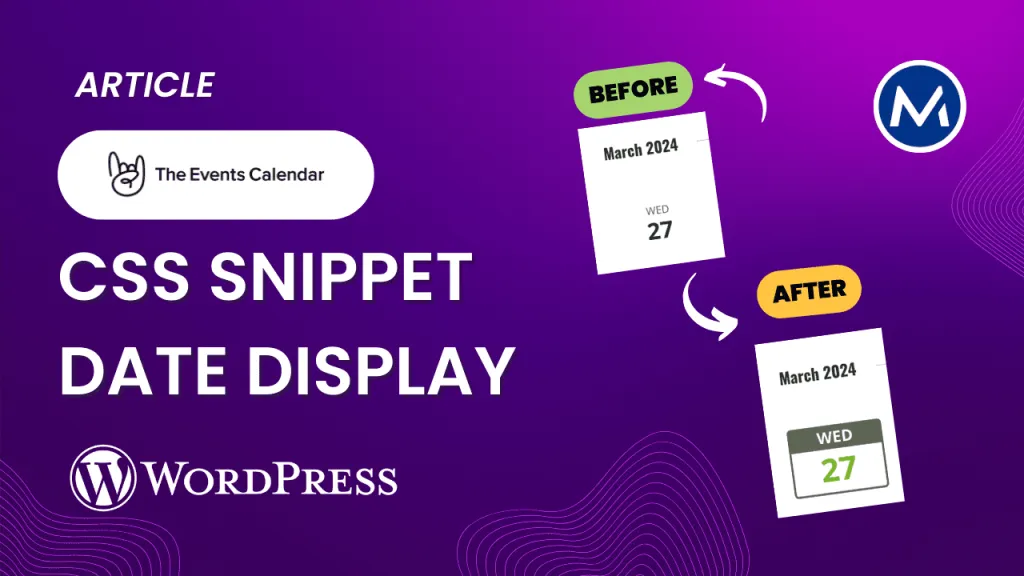
Have you ever felt like the date display on The Events Calendar’s list view lacks the desired visual spark? If yes, then you are not alone. Many users, including me, find the default date styling in The Events Calendar rather plain.
In this article, we will share with you a free CSS snippet we created for one of our clients, Parkes Golf. The css will improve the display of your dates on your events page. This makes it easier to see when your events are held.
Why the Default Styling Needs Improvement
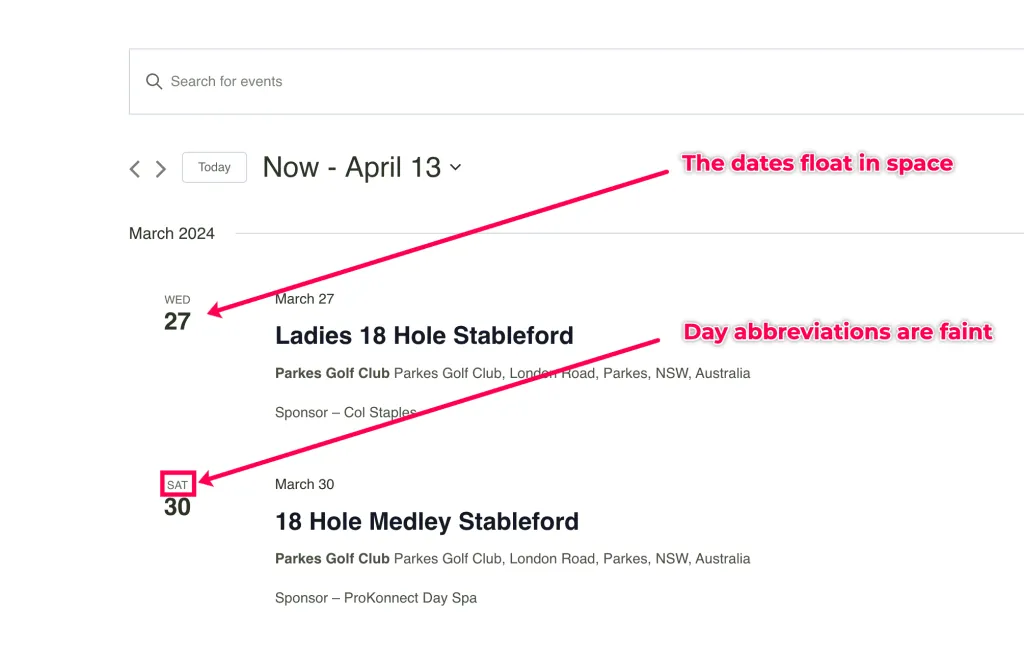
Let’s face it, The Event Calendar’s skeleton styles for dates on the list view are boring and get lost in the design.
- The dates float aimlessly on the page without defined borders or distinct visual cues.
- The abbreviations for the days of the week are often too faint, hindering readability.
Fortunately, there’s a simple solution to make your dates stand out and elevate the overall look of your events page.
Video: How to Style the Date Display in The Events Calendar in WordPress
Before diving into the implementation, we recommend checking out our video tutorial. In this video, we walk you through the process of styling the date display within the Events Calendar on your WordPress website.
Improving Default Date Display
We will improve how dates appear on the Events Calendar by using MRK’s custom CSS code for date styling. To do this, we will;
- Identify where to add the custom CSS.
- Grab the custom CSS snippet from GitHub and add it to the site.
1. Identify Where to Add the Custom CSS
You can add custom CSS to your WordPress website using various methods. These include;
- Theme’s Additional CSS: Most WordPress themes offer an option to add custom CSS directly from the theme customiser settings.
- Child Theme Stylesheet: If you use a child theme, you can add your CSS directly to the child theme’s stylesheet.
- Custom CSS Plugin: Alternatively, you can use a custom CSS plugin to add custom CSS to your website.
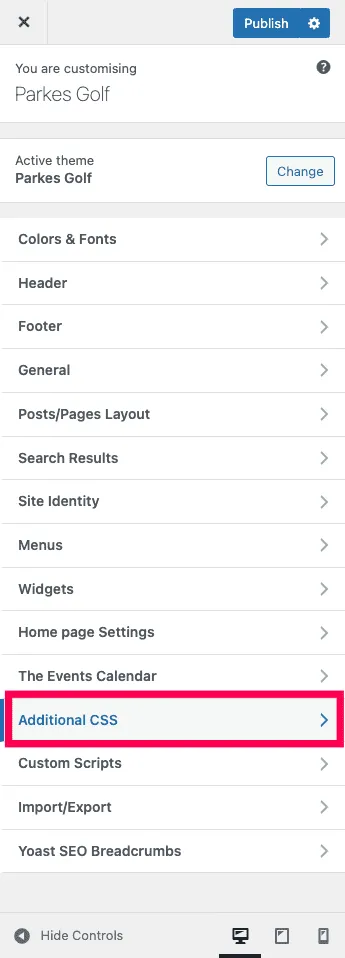
In this guide, we will be using Kadence‘s Additional CSS settings to show you the steps.
2. Add the Custom CSS Snippet to the Site
Grab the custom date styling CSS code snippet below and paste it into your theme’s Additional CSS settings.
Remember to save your changes inside the theme customiser.
Remember!
The CSS makes use of variables for the default color values. If you want to change them you can, just change the variables to HEX or RGB values in the css to get the desired styling.
The variables are your global colour values from the styling side WordPress and should work with most themes.
The variables we use are:
- var(–global-palette5)
- var(–global-palette9)
- var(–global-palette-highlight)
Results: New Events Calendar Date Styles
Check out your site ‘s events page. The dates on the events list layout should have a fresh, stand-out look.
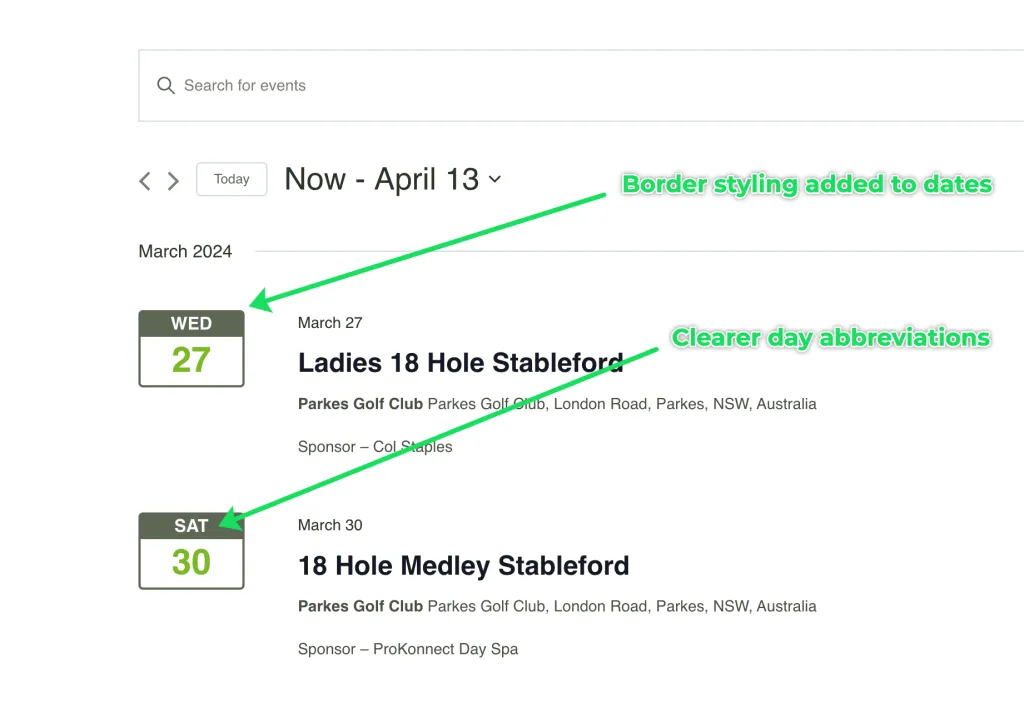
The new styles will also make your dates look great on any mobile device, including phones and tablets.
We added some custom padding and a media query to get the right result.

Conclusion
On completion of this tutorial you will have the improved Events Calendar date display styles.
At MRK WP, we offer support for The Events Calendar plugin as part of our WordPress Care Plan service. Contact us if you need assistance customising your website’s events system.